Kit Editor
On this page
The Kit Editor view is where you build and audition your kits. It shows all four voices with their sample slots, playback controls, and the step sequencer.
Opening a Kit
Click any kit card in the Kit Browser to open it. The header shows:

- Back button – Returns to the Kit Browser
- Kit navigation – Previous/Next arrows to step through kits sequentially (or use
,and.keys) - Kit ID and name – The bank/slot and editable name field
- Favorite bookmark – Toggle bookmark
- Lock toggle – Protect the kit from edits
- Scan Kit button – Re-analyze samples and refresh voice name detection
Unscanned Kit Prompt
If a kit hasn’t been scanned yet and contains samples, a banner appears below the header prompting you to scan. Click Scan Now to run the analysis, or dismiss the banner if you’d prefer to scan later. Scanning infers voice names from sample filenames and extracts WAV metadata (sample rate, bit depth, duration).
Voice Panels
The main area shows four voice panels, one for each of the Rample’s voices. Each panel is color-coded:
- Voice 1 – Red
- Voice 2 – Yellow
- Voice 3 – Green
- Voice 4 – Blue
Voice Header
Each voice panel has a header showing:
- Voice number and name – The name is either manually set or auto-detected from sample filenames (e.g., “Kick”, “Snare”, “Closed HH”)
- Sample count – How many of the 12 available slots are filled
Sample Slots
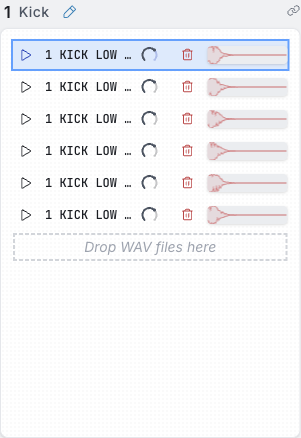
Each voice has up to 12 sample slots, matching the Rample’s 12-layer-per-voice capability. Filled slots show:
- Slot number (1 through 12)
- Sample filename
- Play button – Click to audition the sample
- Gain knob – Per-sample volume trim (see Gain Control below)
- Waveform display – Visual representation of the audio
- Delete button – Remove the sample from this slot
Assigning Samples
Drag and Drop
The primary way to add samples is drag and drop:
- Open a file browser window alongside Romper
- Drag one or more
.wavfiles from your filesystem onto a voice panel or a specific slot - Romper validates the files and assigns them to available slots
Rules and limits:
- Only
.wavfiles are accepted. Other formats are rejected with a warning. - A maximum of 12 samples per voice. If you drop more than 12, only the first 12 are added.
- Duplicate samples within the same voice are prevented.
- Dropping a duplicate sample that already exists in a different voice triggers a warning but is allowed.
- Drop targets highlight as you drag over them so you can see exactly where samples will land.
Stereo and Mono Handling
The Rample supports both mono and stereo playback, and Romper handles this with two levels of control:
Global setting – In Settings, the Treat Stereo as Mono toggle (on by default) controls the default behavior. When enabled, stereo samples are treated as two linked mono channels during sync.
Per-sample override – Each sample row has a stereo/mono toggle that overrides the global setting for that specific sample. When a stereo sample is set to mono mode, it occupies its own slot plus the matching slot in the next voice (stereo linking). If there isn’t room, Romper shows a warning.
Voice Names and Kit Type
Romper automatically analyzes sample filenames to suggest voice names. For example, if Voice 1 contains files named KICK_LOW_01.wav, KICK_LOW_02.wav, etc., Romper labels that voice “Kick”.
You can also name voices manually by editing the name field in the voice header.
The kit type (Drum, Loop, Vocal, FX, Synth/Bass) is inferred from the combination of voice names. A kit with voices named Kick, Snare, HiHat, and Clap would be classified as a Drum kit.
Click the Scan Kit button (or press /) to re-run the analysis at any time.
Gain Control
Each sample slot has a small gain knob that lets you trim the volume of individual samples from -24 dB to +12 dB. This is useful for balancing samples within a voice – for example, if one kick hit is louder than the others.
Using the Gain Knob
- Drag up/down to adjust the gain. Hold Shift while scrolling for finer 0.5 dB steps
- Scroll the mouse wheel over the knob to nudge the value up or down
- Click the knob to reset it to 0 dB (unity gain)
- Hover over the knob to see the current dB value
The knob scales up on hover so you can see the arc position clearly, even though it’s compact in the sample row.
Gain vs. Voice Volume
Per-sample gain and the voice volume slider in the step sequencer serve different purposes:
- Per-sample gain adjusts the relative loudness of individual samples within a voice. It is baked into the WAV file when you sync to the SD card, so the Rample hardware plays the sample at the adjusted level
- Voice volume controls the overall playback level of an entire voice during sequencer preview. It is not saved to the SD card – it only affects preview playback in Romper
When both are active during preview, Romper combines them: the sample plays at its gain-adjusted level, then the voice volume scales the output. On hardware, only the baked-in gain applies – voice volume has no effect on the Rample.
Previewing Samples
Single Sample Playback
Click the play icon on any sample row to hear it. The currently playing sample is highlighted. Click again or click a different sample to stop it.
Voice choke: Each voice is monophonic – when you trigger a new sample on a voice, any previously playing sample on that voice stops automatically. This mirrors how the Rample hardware behaves.
Volume: Adjust the global preview volume using the slider in the status bar at the bottom of the window.
Step Sequencer
The step sequencer lets you audition all four voices together in a rhythmic pattern. Program a looping 16-step sequence to hear how your kit’s samples work together before syncing to the Rample. Toggle it with the Show/Hide Sequencer button at the bottom of the kit view, or press S.
See the full Step Sequencer guide for details on the grid, transport controls, trigger conditions, sample selection modes, voice volume/mute, and a walkthrough example.
Navigating Between Kits
You don’t need to return to the Kit Browser to switch kits. Use:
- Previous kit:
,(comma) key or the left arrow in the header - Next kit:
.(period) key or the right arrow in the header
This lets you quickly compare kits side by side.